SharePoint External B2B Guest — Access Blocked (Error AADSTS90072)
Estimated Reading Time: 3 Minutes## Symptom
An external guest user attempts to access a shared SharePoint Online file or folder using an authentic invitation link, but the login process fails with a hard stop on a Microsoft "Sorry, but we're having trouble signing you in" screen.
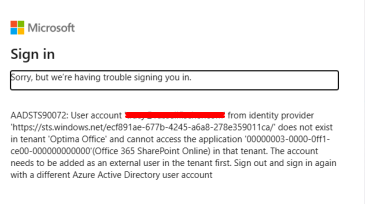
The page displays the following technical details:
-
Error Code:
AADSTS90072 -
Message:
User account 'user@domain.com' from identity provider '...' does not exist in tenant '[Tenant Name]' and cannot access the application '00000003-0000-0ff1-ce00-000000000000' (Office 365 SharePoint Online) in that tenant. -
Behavior: The user is blocked entirely from accessing the application because the target tenant cannot locate their external guest identity record under the specific authentication track they selected.
## Root Cause
This issue is caused by an Identity Provider Mismatch on the backend Guest User object.
Microsoft allows an end-user to register a corporate email address (e.g., user@company.com) as a consumer "Personal Microsoft Account" (Live ID) wrapper. If the guest user inadvertently selects "Personal Account" during login or invitation redemption, Entra ID attempts to validate them against a personal identity track.
If the user object in the host tenant is configured as an enterprise account (or if the profile is in a partially purged state), Entra ID fails to find a matching personal guest record inside the host directory. It then flags the user as "does not exist in tenant" and blocks the hand-off to SharePoint Online.
## Resolution Steps
To resolve this, the existing guest profile must be fully purged from both the master directory and the SharePoint site collection database before initiating a clean enterprise redemption.
### Step 1: Purge the Stale Object in Entra ID
-
Log into the Microsoft Entra Admin Center as a Global Administrator or User Administrator.
-
Navigate to Identity > Users > All Users.
-
Search for the affected external email address and select Delete.
-
Navigate to the Deleted users blade in the left-hand menu.
-
Select the user and click Delete permanently.
Note: Failure to permanently delete the object will cause Entra ID to reuse the broken
MicrosoftAccountmetadata stub upon re-invitation.
### Step 2: Clear the SharePoint Site Collection Profile Stub (Optional / Conditional)
Note: This step can often be skipped. Only perform this if the user continues to experience the error after completing Steps 1 and 3.
Even after deleting a user from Entra ID, SharePoint occasionally retains a hidden, site-level user record that will block re-authentication. Run the following PowerShell command to drop it:
# Connect to your SharePoint Admin Service
Connect-SPOService -Url "https://<tenant>-admin.sharepoint.com"

# Remove the user stub from the specific target site collection
Remove-SPOUser -Site "https://<tenant>.sharepoint.com/sites/<SiteName>" -LoginName "user_domain.com#EXT#@<tenant>.onmicrosoft.com"
### Step 3: Re-Invite and Enforce Clean Redemption
-
Go back to Entra ID > Users > All Users and click New User > Invite external user.
-
Input the user's corporate email and trigger the invitation.
-
Ensure they are added to any required Conditional Access/Token Protection Exclusion Groups if active on the tenant.
-
Instruct the End-User explicitly:
-
Open a completely fresh Incognito / InPrivate browser window.
-
Access the shared link or invitation inside that private window.
-
If prompted by Microsoft to choose an account type, select Work or School account.
-
Verify in the Entra User list that the user’s Identities column now reflects ExternalAzureAD instead of MicrosoftAccount. The error will be resolved.