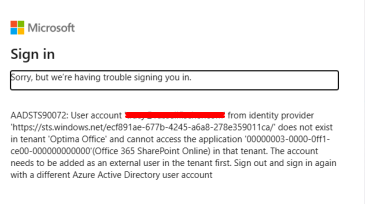
An external guest user attempts to access a shared SharePoint Online file or folder using an authentic invitation link, but the login process fails with a hard stop on a Microsoft "Sorry, but we're having trouble signing you in" screen.
The page displays the following technical details:
Error Code: AADSTS90072
Message: User account 'user@domain.com' from identity provider '...' does not exist in tenant '[Tenant Name]' and cannot access the application '00000003-0000-0ff1-ce00-000000000000' (Office 365 SharePoint Online) in that tenant.
Behavior: The user is blocked entirely from accessing the application because the target tenant cannot locate their external guest identity record under the specific authentication track they selected.
This issue is caused by an Identity Provider Mismatch on the backend Guest User object.
Microsoft allows an end-user to register a corporate email address (e.g., user@company.com) as a consumer "Personal Microsoft Account" (Live ID) wrapper. If the guest user inadvertently selects "Personal Account" during login or invitation redemption, Entra ID attempts to validate them against a personal identity track.
If the user object in the host tenant is configured as an enterprise account (or if the profile is in a partially purged state), Entra ID fails to find a matching personal guest record inside the host directory. It then flags the user as "does not exist in tenant" and blocks the hand-off to SharePoint Online.
To resolve this, the existing guest profile must be fully purged from both the master directory and the SharePoint site collection database before initiating a clean enterprise redemption.
Log into the Microsoft Entra Admin Center as a Global Administrator or User Administrator.
Navigate to Identity > Users > All Users.
Search for the affected external email address and select Delete.
Navigate to the Deleted users blade in the left-hand menu.
Select the user and click Delete permanently.
Note: Failure to permanently delete the object will cause Entra ID to reuse the broken
MicrosoftAccountmetadata stub upon re-invitation.
Note: This step can often be skipped. Only perform this if the user continues to experience the error after completing Steps 1 and 3.
Even after deleting a user from Entra ID, SharePoint occasionally retains a hidden, site-level user record that will block re-authentication. Run the following PowerShell command to drop it:
# Connect to your SharePoint Admin Service
Connect-SPOService -Url "https://<tenant>-admin.sharepoint.com"

# Remove the user stub from the specific target site collection
Remove-SPOUser -Site "https://<tenant>.sharepoint.com/sites/<SiteName>" -LoginName "user_domain.com#EXT#@<tenant>.onmicrosoft.com"
Go back to Entra ID > Users > All Users and click New User > Invite external user.
Input the user's corporate email and trigger the invitation.
Ensure they are added to any required Conditional Access/Token Protection Exclusion Groups if active on the tenant.
Instruct the End-User explicitly:
Open a completely fresh Incognito / InPrivate browser window.
Access the shared link or invitation inside that private window.
If prompted by Microsoft to choose an account type, select Work or School account.
Verify in the Entra User list that the user’s Identities column now reflects ExternalAzureAD instead of MicrosoftAccount. The error will be resolved.
Article ID: 1241
Created: June 26, 2026
Last Updated: June 26, 2026
Author: Natural Networks NOC [support@naturalnetworks.com]
Online URL: https://kb.naturalnetworks.com/article.php?id=1241