Link Your Personal LastPass Account to Your Business LastPass Account
Estimated Reading Time: 1 MinutesEveryone does a personal chore during work hours, now and again. Keep your personal passwords out of your business password vault by doing the following:
|
# |
Instructions |
Details |
|
1 |
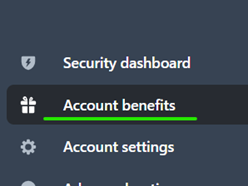
In LastPass Business, on the left side menu, select “Account Benefits”. |
|
|
2 |
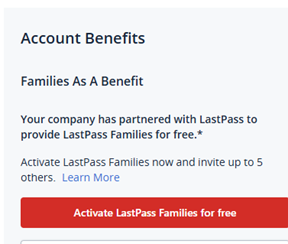
You might need to activate LastPass for Families. If so, click the Activate button |
|
|
3 |
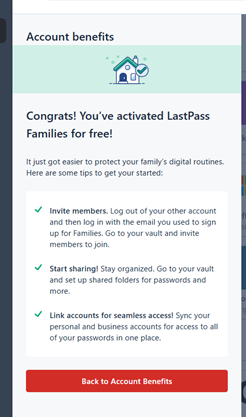
You will see a Congrats! Message if you successfully activate the benefit.
Click the "Back to Account Benefits" button |
|
|
4 |
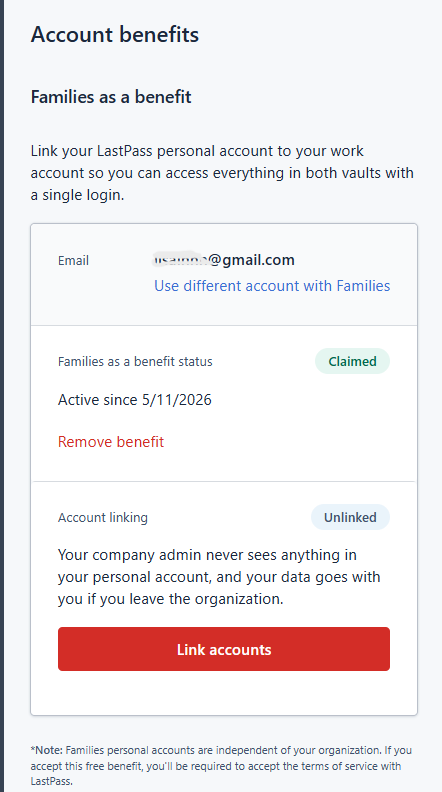
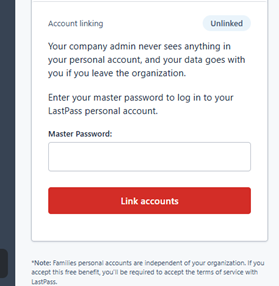
Enter the personal email address you use for LastPass. You can create a free account using your personal email if you do not already have one. Then enter your email under “Families as a benefit.”
Your window will look like this:
Click “Link accounts.” |
|
|
5 |
Enter your Master Password, then click “Link accounts” again |
|
|
6 |
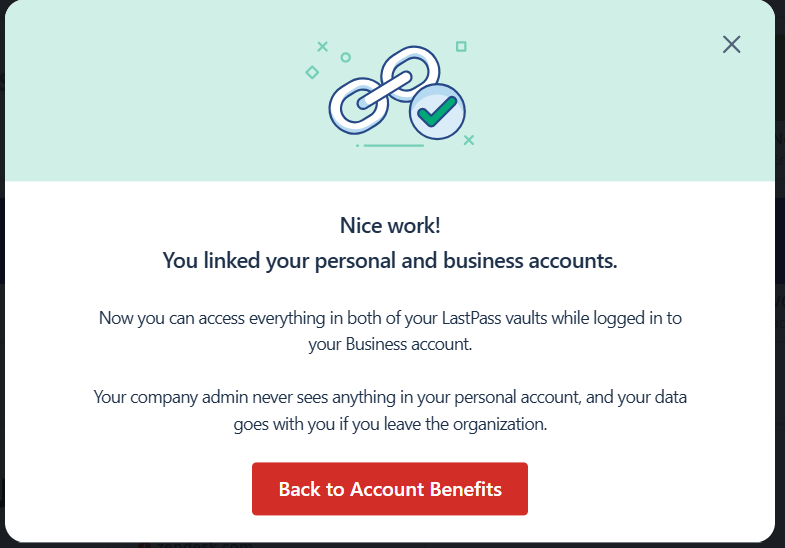
You will get a verification that your LastPass accounts are linked.
Click the "Back to Account Benefits" button |
|
|
7 |
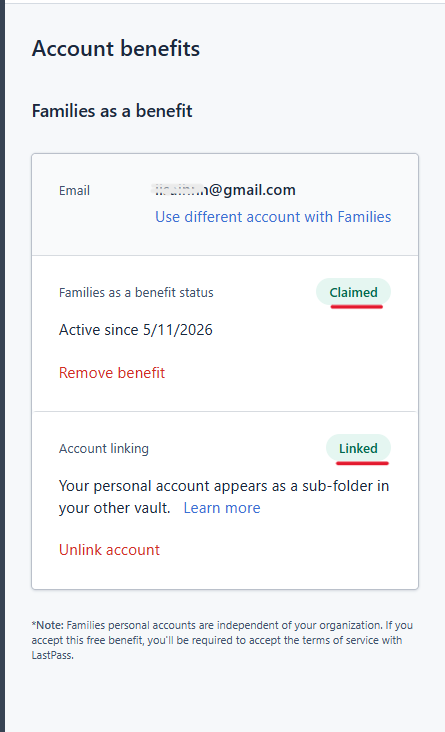
Your Account benefits tab should look like this with Families as a benefit status "Claimed" and Account Linking "Linked" |
|
|
8 |
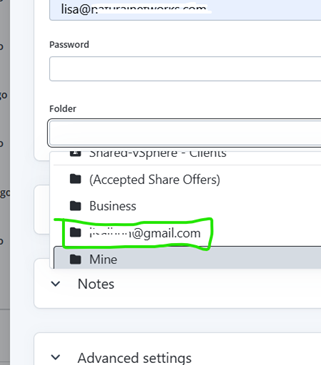
Now, when saving items in LastPass, you can select the personal folder for personal passwords. This folder will go with you if you leave your company. |
|