Spam Filter Basics
Gaining Access to your personal Spam Folder.
|
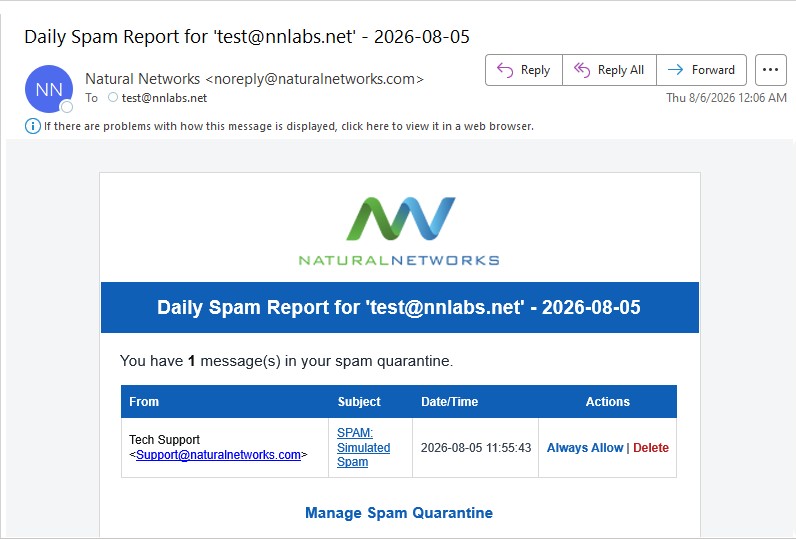
If you have any emails in your quarantine mailbox, you will receive an email from noreply@naturalnetworks.com with the subject of Daily Spam Report for youremail@yourcompany.com followed by the date.
|
|
|
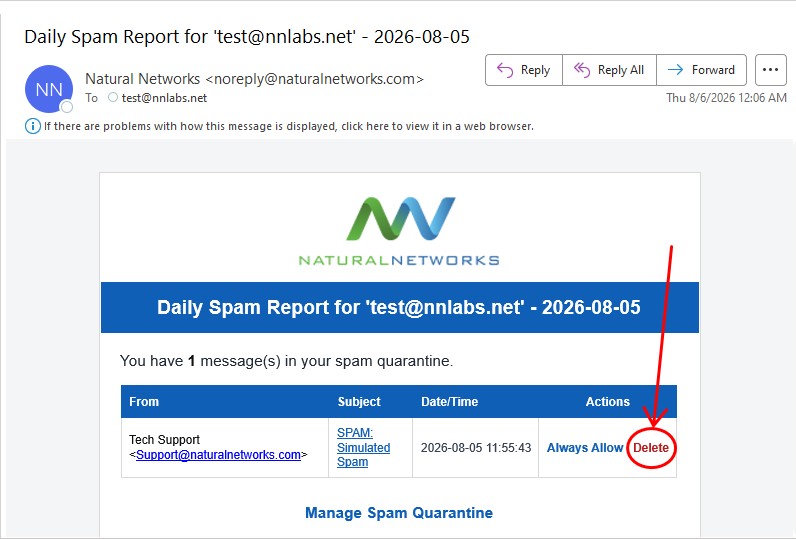
If the email is a spam, junk, or phishing email; you can click “Delete” to delete the email.
|
|
|
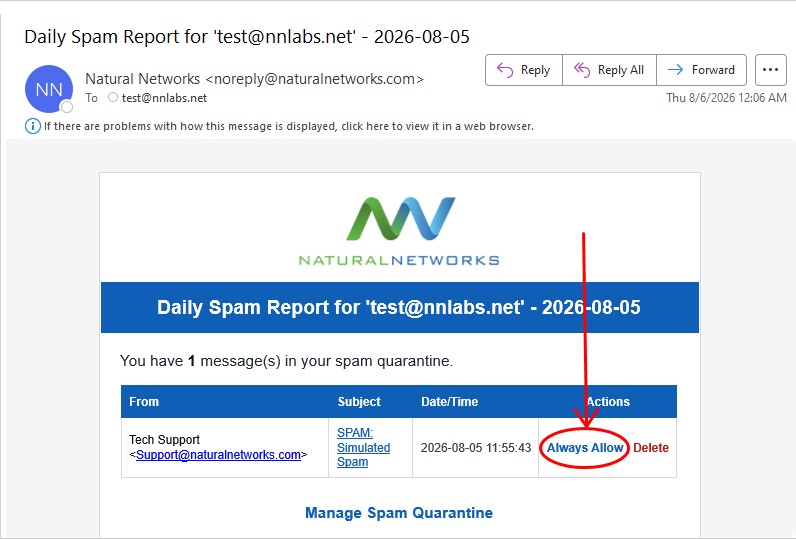
If the email is not a spam, junk, or phishing email; you can click “Always Allow” to add the email to your allow list.
|
|
|
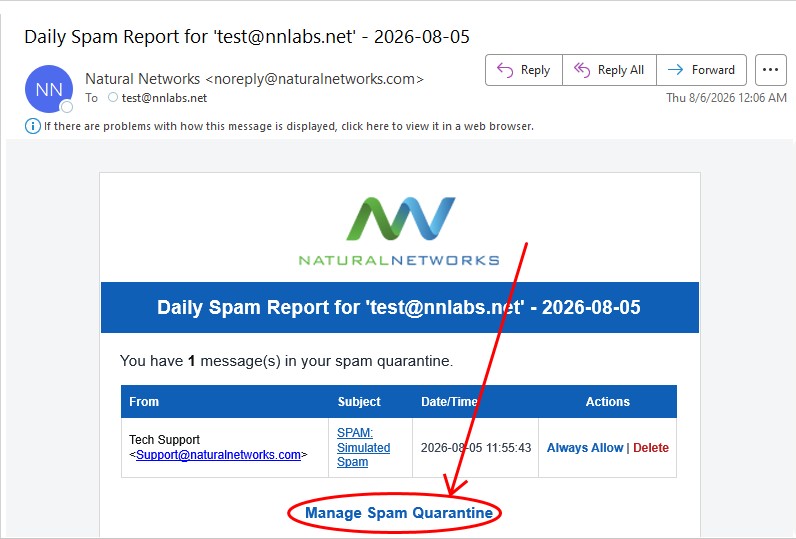
If you want more granular control over your spam mailbox, click “Manage Spam Quarantine”.
|
|
|
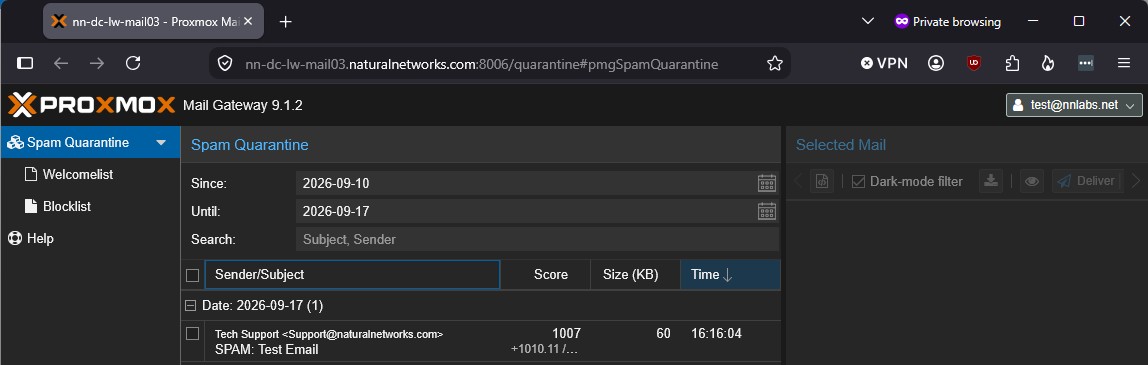
This will bring you to your spam mailbox.
|
|
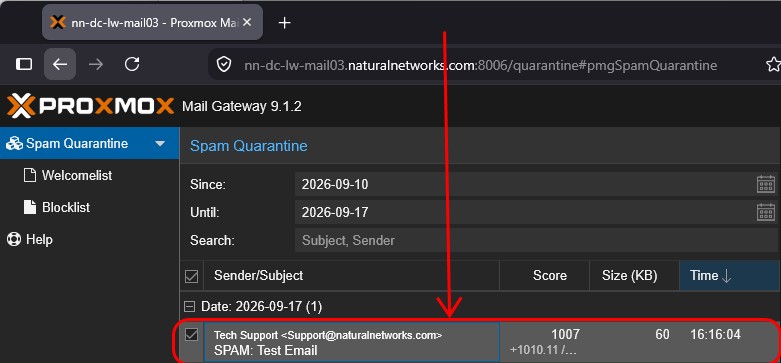
Marking an email for Delivery, Allow, Delete, or Block.
|
Any email that is in your spam mailbox will be visible in the middle column.
|
|
|
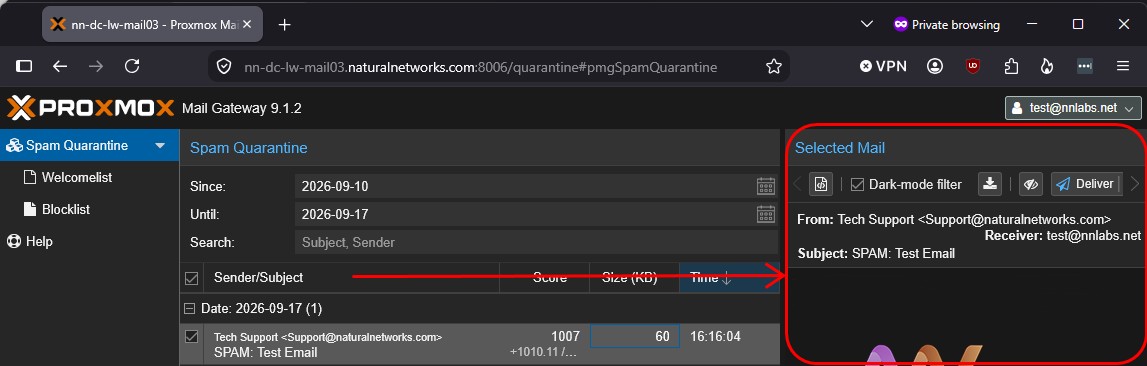
Any email you click on will be visible on the right-hand column.
|
|
|
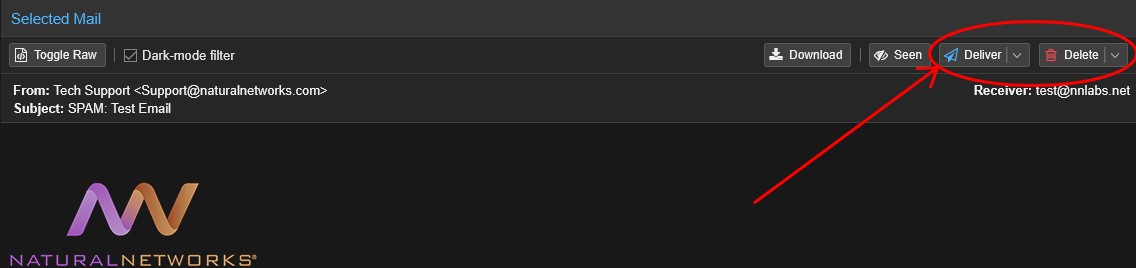
You can Deliver and Delete emails in your spam mailbox in using the controls on the far right.
|
|
|
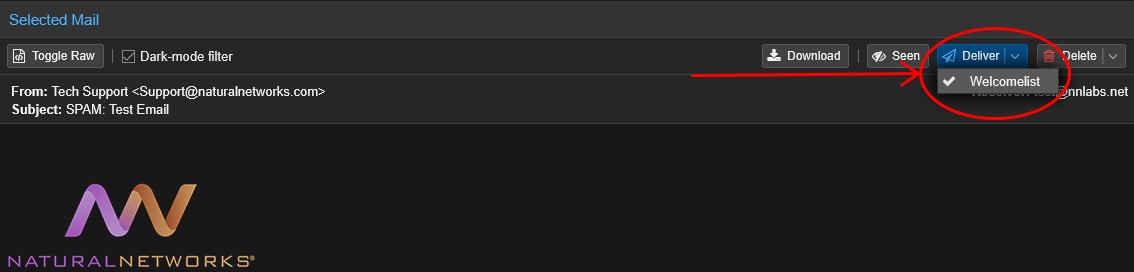
Clicking on the “⌄” to the right of the “Delivery” button will reveal the “Welcomelist” button.
Using the Welcomelist button will allow all future emails to be delivered directly to you main inbox.
|
|
|
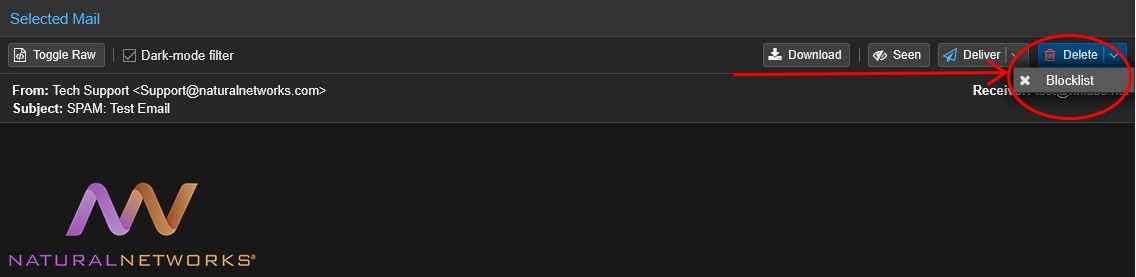
Clicking on the “⌄” to the right of the “Delete” button will reveal the “Blocklist” button.
User the Blocklist button will quarantine all future emails from he same address.
|
|
Editing your Welcomelist and Blocklist
|
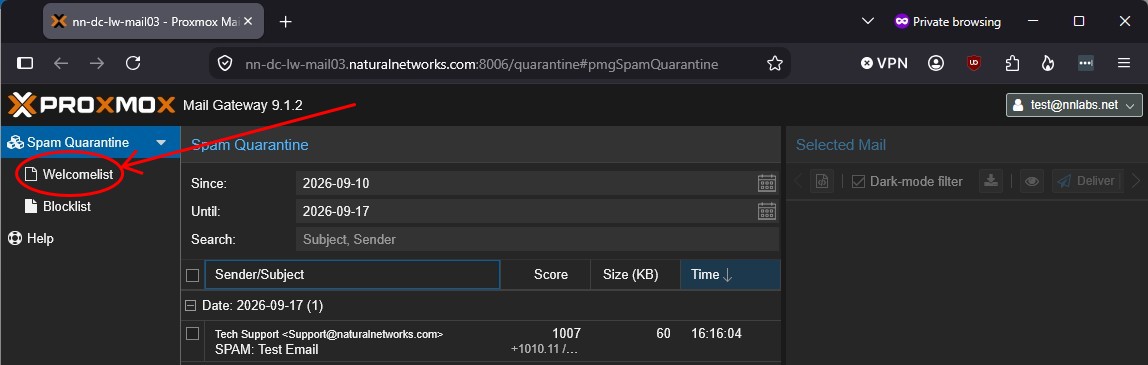
You can view emails that are allow listed by clicking “Welcomelist”.
|
|
|
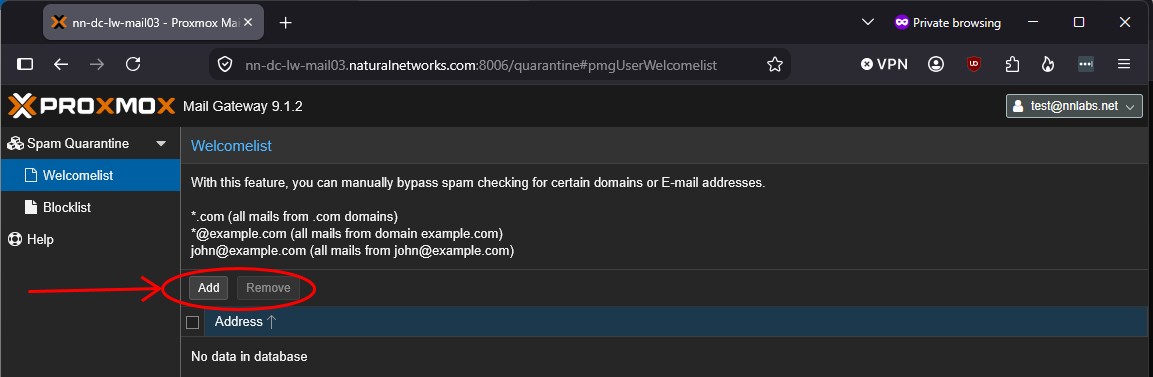
You can add or remove emails in your Welcomelist from here.
|
|
|
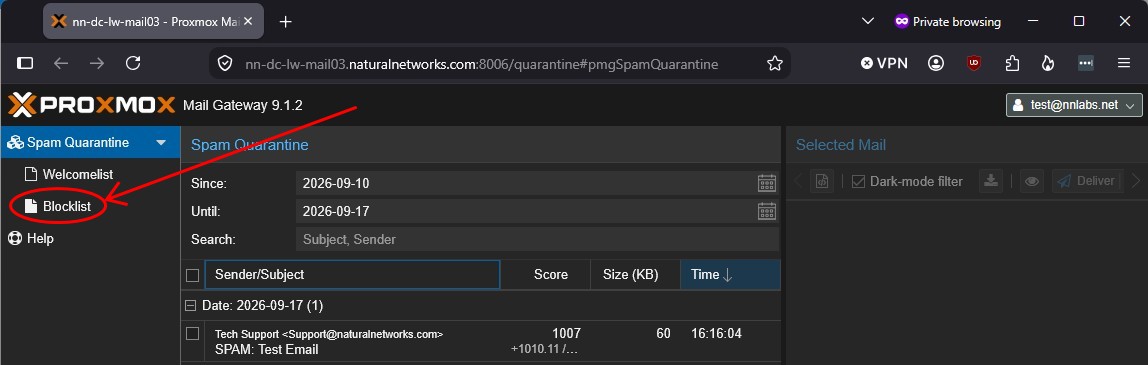
You can view emails that are block listed by clicking “Blocklist”.
|
|
|
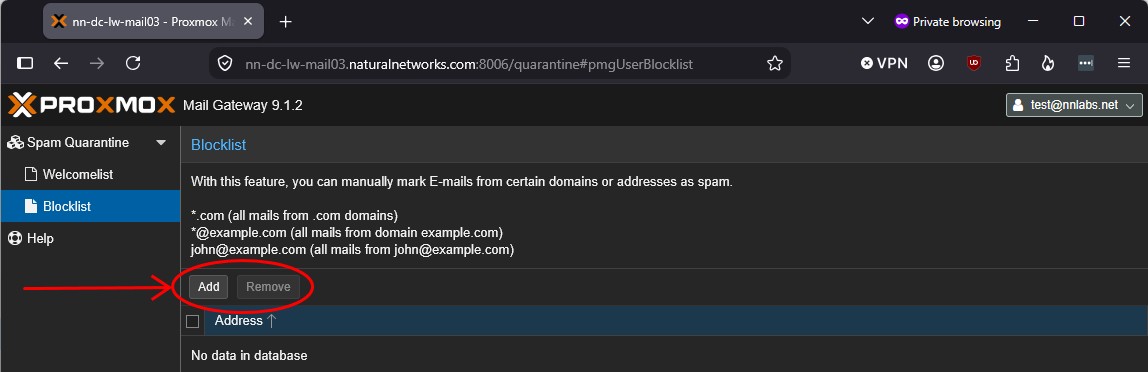
You can add or remove emails in your Blocklist from here.
|
|
Article ID: 1350
Created: September 18, 2026
Last Updated: September 18, 2026
Author: Natural Networks NOC [support@naturalnetworks.com]
Online URL: https://kb.naturalnetworks.com/article.php?id=1350