|
Step # |
Task |
Screenshot |
|
1 |
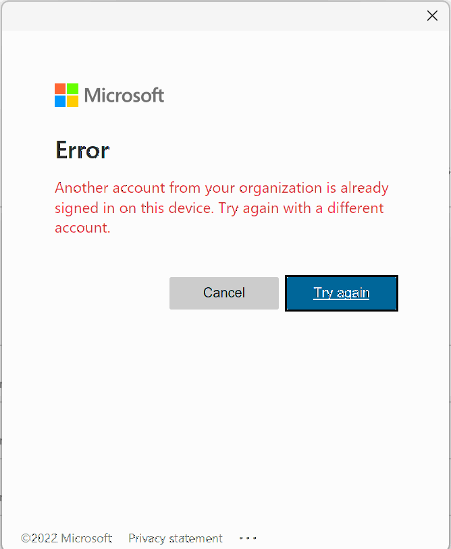
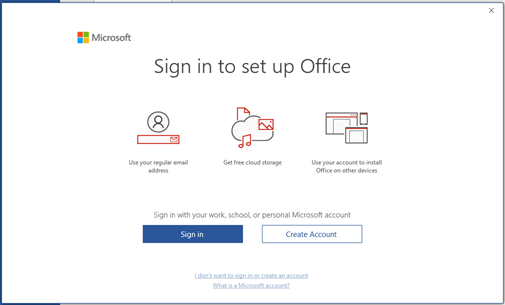
Issue: Signing into a known good Office 365 account results in the error message, “Another account is already signed in on this device try again with a different account.” |
|
|
2 |
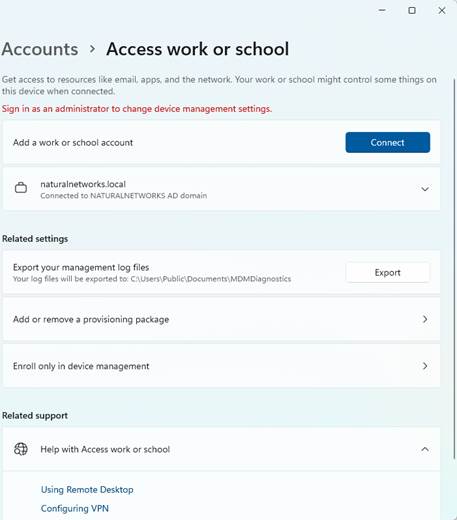
In Windows navigate as follows
“Settings -> Accounts -> Accounts -> Access work or school”
Remove all entries, except any AD domain entries. |
|
|
3 |
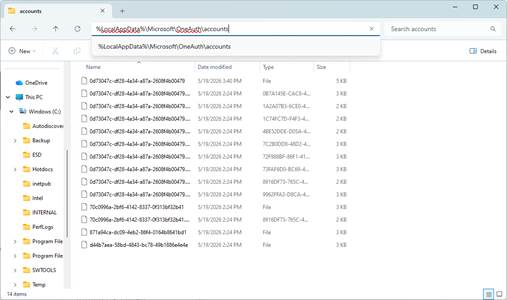
Open File Explorer. Navigate to “%LocalAppData%\Microsoft\OneAuth\accounts”
Move all folders and file to C:\Temp |
|
|
4 |
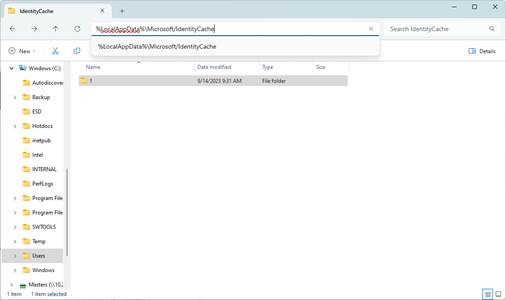
Open File Explorer. Navigate to “%LocalAppData%\Microsoft\IdentityCache”
Move all folders and files to C:\Temp |
|
|
5 |
Open Office and sign in. |
|