|
# |
Instructions |
Details |
|
1 |
First, the current driver must be removed completely. To start, log on to Windows with an Administrator account. Open Device Manager. |
|
|
2 |
In Device Manager, change the view to Devices by Connection. Double click the “Senary Audio Device”. Go to “Details”, select “Properties”, go to “Extended INFs” Make a note of the files like “oemXX.inf “ |
|
|
3 |
Uninstall all devices under Senary Audio Device. Check the box for “Delete the driver software for this device” and click “Uninstall”
IMPORTANT: Do not refresh or rescan devices or the bad driver will reinstall! |
|
|
4 |
When that is complete, open a Command Prompt as Admin. Type: pnputil /delete-driver oemXX.inf replacing the XX with the numbers you noted in step 2 above. Do this for every file noted. |
|
|
5 |
Restart Windows. Open Device Manager and ensure that under Sound, video and game controllers” you see “High-Definition Audio Device”.
Test Teams. You will be able to use the microphone as designed. No further steps are required. |
|
|
6 |
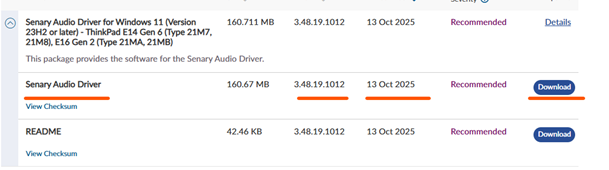
If you still can’t be heard in Teams, run Lenovo Vantage or Update and get the latest updates. Look for version 3.48.19.1012 or later. |
|